
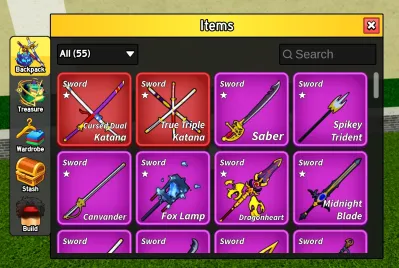
Use Treasure for fruit you want to keep. Holding the fruit in your hotbar is temporary.
Steps
- When a fruit is in your hotbar, select and hold it in a sheltered spot. Open its item actions and choose Store. Eat would replace your currently equipped fruit power, so decide first which action you want.
- Open Menu → Items → Treasure. Select the fruit filter and check that the correct fruit appears there. Do this before taking a boat, resetting, or entering a fight.
- If Store fails because you already own a copy, inspect your count for that exact species. Base storage is one of each species. In Second or Third Sea you can trade a stored copy to clear room, or use an appropriate fruit for a raid payment. Handle the held fruit before leaving or taking risks.
- To retrieve a saved copy when ready, select it in Treasure and choose the action that puts it in your hotbar. Keep it stored until you need it. A fruit you take out is vulnerable if you die while holding it.
- Check whether the item is a physical fruit or a redeemable permanent product before using it. Both can appear in Treasure, with different actions and outcomes.
Cost
Storing and taking out a fruit is free. Additional duplicate capacity is sold separately as +1 Fruit Storage.
What it does: Saves a physical fruit for later use and makes the saved copy available to eligible trading or to take back out.
Sources & image credits
Checked November 22, 2026. Inventory and storage behavior · Current inventory tabs · Developer update on First Sea unstoring
In-game images by the credited file contributors: File:UpdatedInventory.png.
