
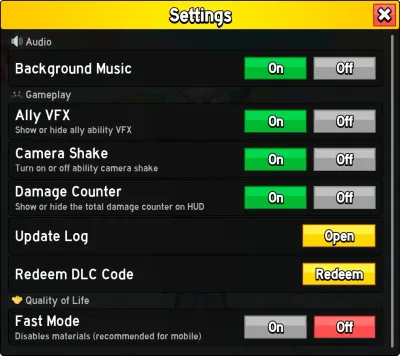
Open and adjust Settings
- Find the in-game Settings button beside Crew for Pirates or Ally for Marines.
- Open it and locate the option you want to change.
- Toggle Background Music to control the soundtrack.
- Adjust Ally VFX if you want to hide allies’ attack effects. Read the row’s current state rather than assuming it affects enemy attacks.
- Turn Camera Shake off or on to choose whether attacks shake your view.
- Set Damage Counter to show or hide the damage display.
- Turn Fast Mode on if you want the texture-reduced display, then inspect how the game looks and runs on your device.
What the options affect
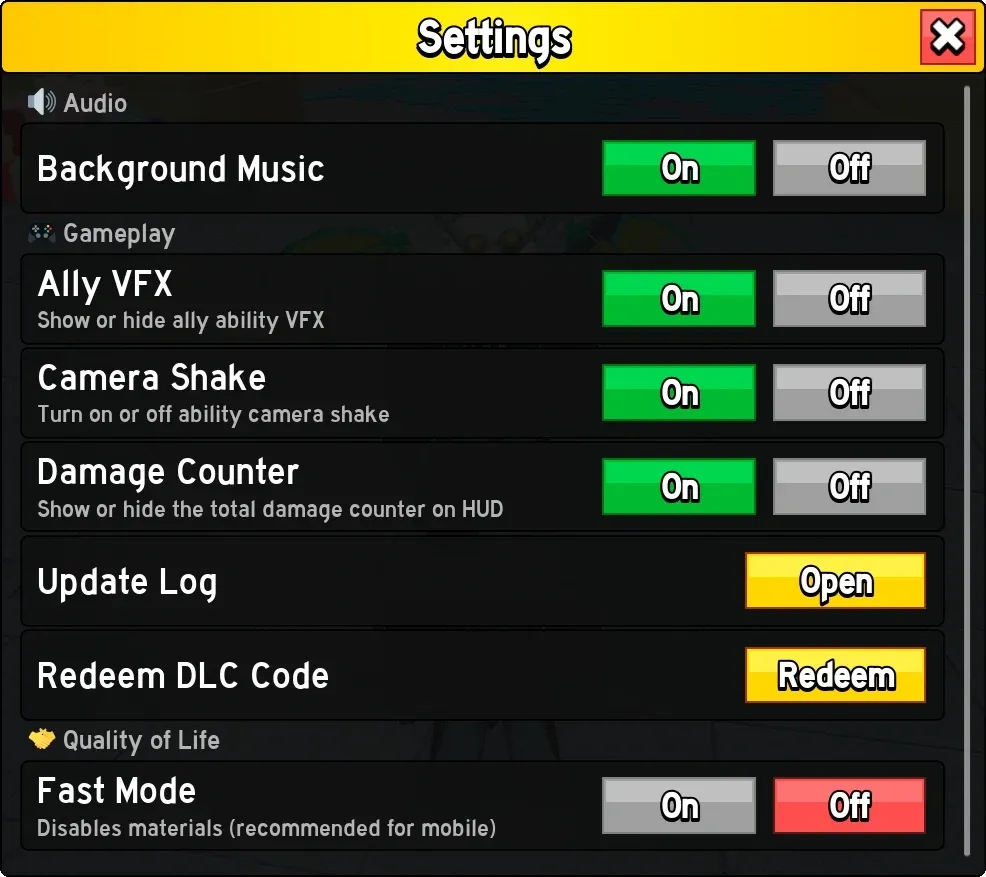
These are display, audio and performance controls. They do not increase the damage of your build. Fast Mode removes textures; an improvement in frame rate depends on the device and situation.
The Settings screenshot includes Update Log, but the current Settings article says that option was removed. Do not rely on that older row being present. For code entry, use Redeem DLC Code and the code-redemption steps.
Cost
The listed in-game Settings controls have no currency charge.
What it does: Changes local audio, visual effects, camera shake, damage display and texture rendering. It does not grant levels, items or stronger combat stats.
Sources & image credits
Sources and image credits
Checked November 17, 2026 against pinned Blox Fruits Wiki revisions: Settings, Fast Mode, Damage Counter.
Actual game NPCs, locations and interfaces by Blox Fruits Wiki contributors: File:Settings.png. Images were resized without enlargement and converted to WebP, preserving source content and aspect ratio. Animated NPC sources use a representative original frame. Source metadata, original and output hashes are recorded in the gameplay-systems research manifest.
