The gold chest icon in Menu → Items is Stash. It groups stored bait, materials, Plastic Fruits and fishing catches. Use the game’s filters to find something you own, or browse the item guides to learn how to obtain a particular item.
Step 1: Open Menu, then Items
- In Blox Fruits, open Menu.
- Choose Items, beside Stats, to open your Inventory.
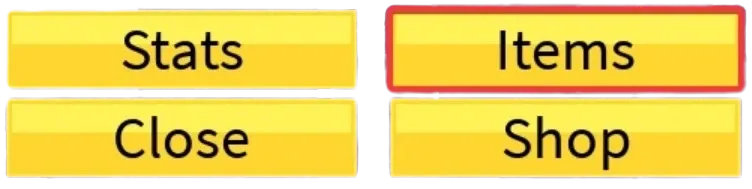
This button-reference image highlights Items. The full Inventory window below shows the five-tab layout.
Step 2: Select the gold Stash chest
- Look at the tabs down the left side of the Items window: Backpack, Treasure, Wardrobe, Stash and Build.
- Select Stash, the gold chest icon below Wardrobe and above Build.
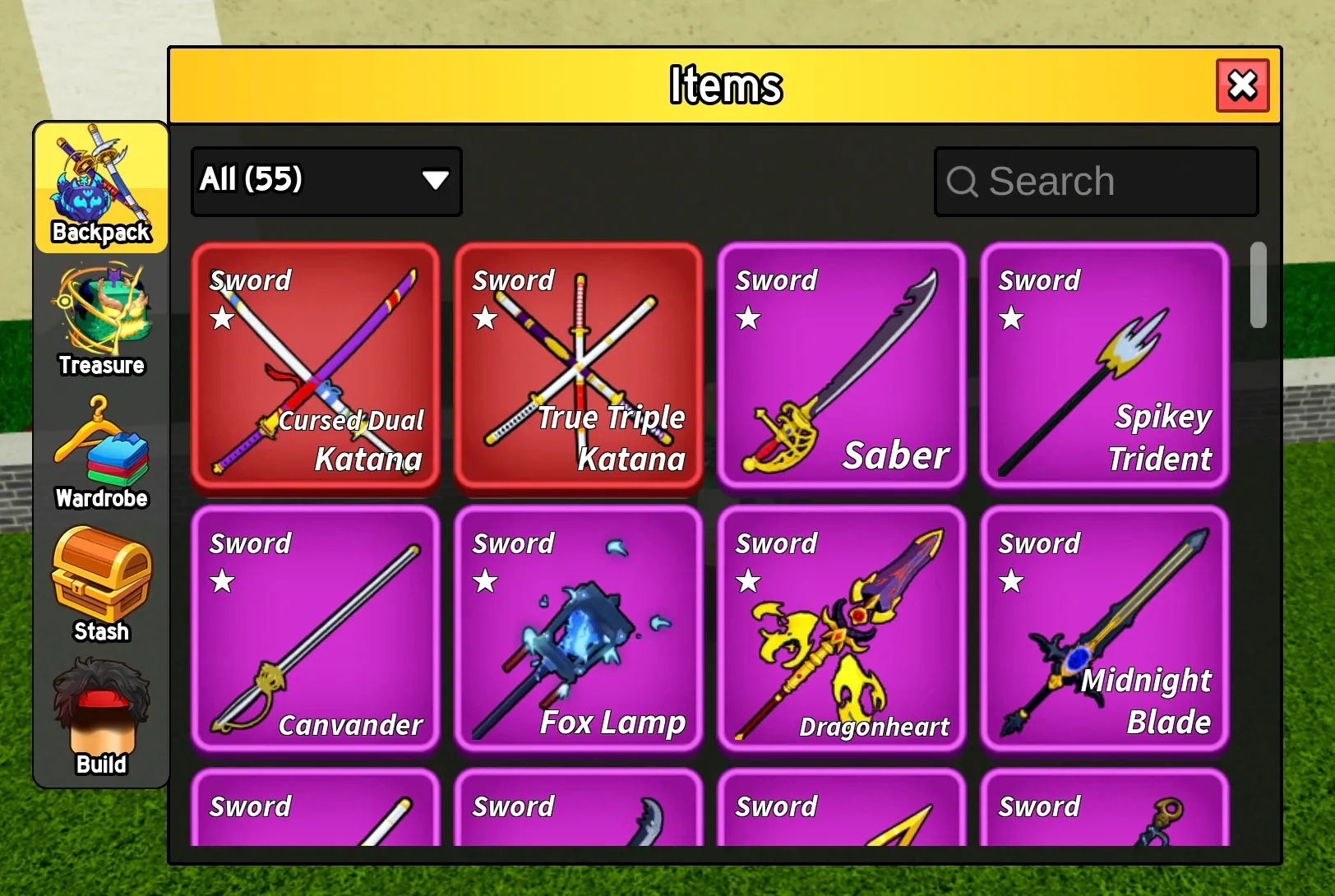
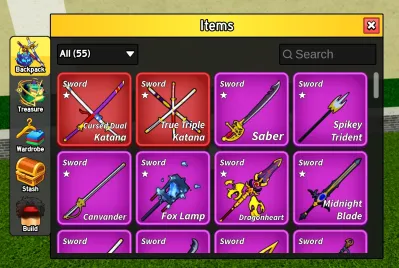
Screenshot reference: Backpack is selected in this image, so its sword tiles are visible. The Stash chest is the fourth icon on the left; select it in your game to view your stored Stash items. The displayed All (55) belongs to the pictured player’s Backpack, not a total of all possible Stash items.
Step 3: Choose one of the four Stash filters
- Open the dropdown at the top left of the Stash panel.
- Select All to see everything currently stored in this tab, or choose a more specific filter.
- Use the search box at the top right to find an item by name. Clear the search when you want to browse again.
| Native filter | What to look for | Example guides |
|---|---|---|
| All | Everything in your Stash’s other groups. | Browse the filters below. |
| Usables | Fishing baits. | Basic Bait, Kelp Bait, Good Bait, Frozen Bait, Carnivore Bait, Abyssal Bait and Epic Bait. |
| Materials | Stored material and item entries, including Plastic Fruits. | Scrap Metal, Leviathan Scale and Plastic Kitsune. |
| Fish | Stored fishing catches. | Angelfish and other fish guides. |
Your Inventory shows your stored or unlocked items. Opening All does not create every possible item or display a complete checklist of things you have never obtained.
Step 4: Open the exact item’s acquisition guide
- Open the item directory and search for the exact item name you want.
- Open its individual guide and check the sea, level, quest requirements and cost before starting.
- Follow that item’s numbered acquisition steps and use its pictures to identify the required NPC, location or item.
- After obtaining a storable item, return to Menu → Items → Stash and select its appropriate filter.
If an item is missing from Stash
- First choose All and clear the search text.
- Physical Blox Fruits, physical skins and physical mutations are under Treasure → Fruits. Scrolls, Holiday Gifts and permanent Fruits are under Treasure → Premium.
- Swords, guns, fishing rods and potions are in Backpack. Accessories and trinkets are in Wardrobe.
- Some quest objects are hotbar-only and cannot be stored. Examples include Fist of Darkness, God’s Chalice and Water Key. Follow their own guides for carrying and using them; searching Stash will not store them.
Cost
Free to open and browse. Selecting Stash, changing its filter and searching have no listed Money, Fragment or Robux charge. Each item’s own guide explains any purchase price, crafting materials or unlock requirements needed to obtain it.
What it does: Stash organizes your stored items into All, Usables, Materials and Fish, with a search box for finding a particular entry. The item directory links to acquisition instructions; opening either list does not award the items.
Sources & image credits
Sources and image credits
Checked November 17, 2026 against pinned Blox Fruits Wiki revisions: Inventory, revision 446465 documents the five tabs, four Stash filters and search controls; Items, revision 432907 distinguishes stored items from temporary hotbar-only quest objects. Inventory’s Materials filter links broadly to Items and Plastic Fruits; this guide does not treat every object on the Items article as storable.
Actual game screenshots: UpdatedInventory.png, uploaded by Mayor76 on May 25, 2026, shows the full Inventory with Backpack selected and the Stash icon visible. Inventory.png, uploaded by Unsolved Darkside on November 16, 2023, is the older Items-button reference. These images identify the navigation controls; neither is presented as a screenshot of selected Stash contents.


Screenshots are credited to their uploaders and Blox Fruits Wiki file contributors. WebP inspection copies preserve the complete source images and aspect ratios, with no added UI or annotations, and were copied unchanged into this guide’s assets. Source file metadata, revision pins, dimensions and SHA-256 hashes are recorded in research-stash-ui-sources.json.